

Edit a list
Change a list’s details, for example to rename the Untitled lists made when you created the project.
Mobile steps coming soon.
- Open the project. On its Lists page, click the menu at the end of the list’s row.
- Click Edit details.
- Change the Description or unit number, Notes, and the Floor or Address if the project has them.
- Click Save.
Edit several lists at once
Section titled “Edit several lists at once”This is in the web portal only. Use Bulk Edit to give several lists the same value, like the same floor.
-
On the project’s Lists page, tick the lists you want to change.
-
In the bar at the bottom, click Bulk Edit.

-
Enter the new value for each field you want to change. Its box on the right ticks itself, and only ticked fields are changed.
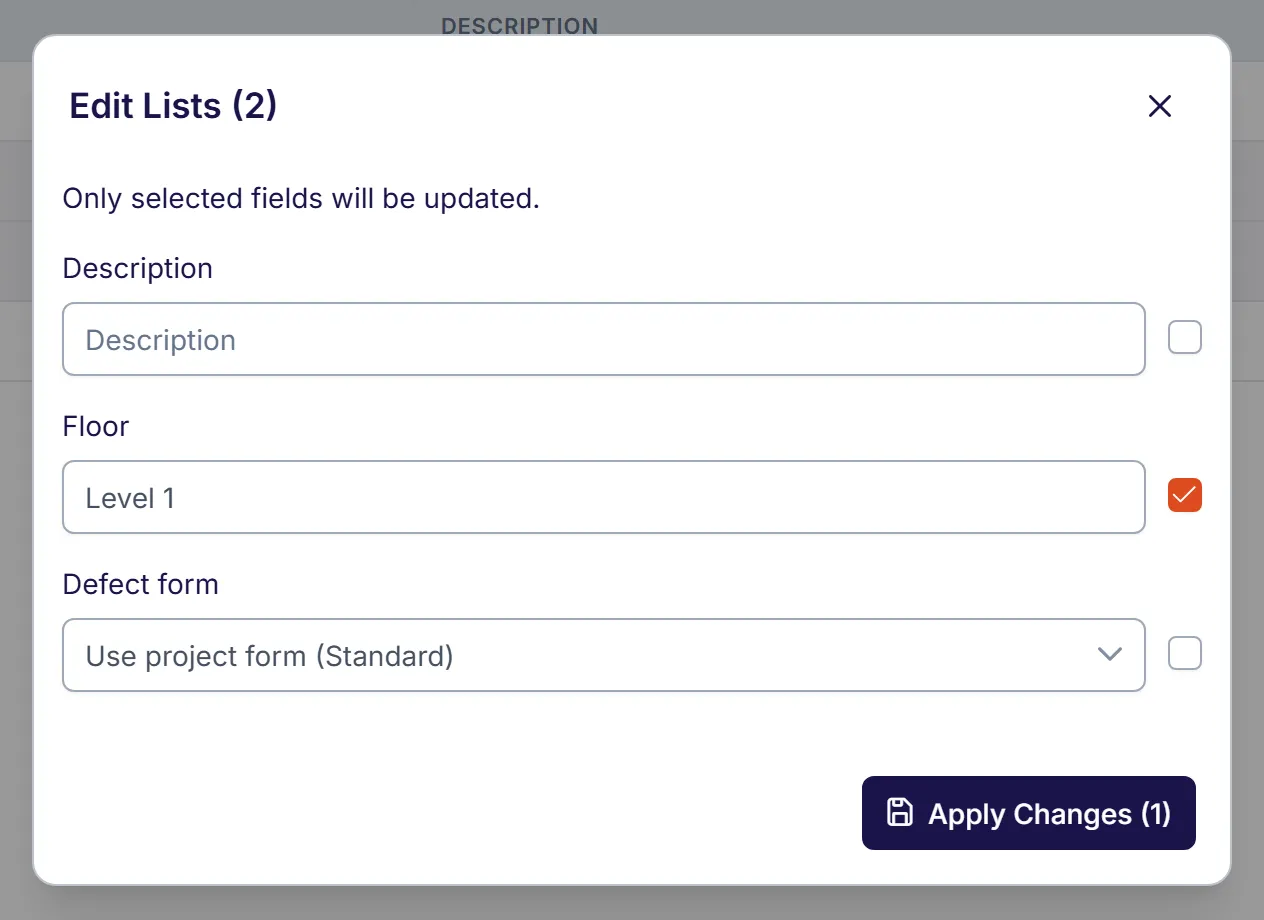
-
Click Apply Changes.