

Preview the form and report
Who can do this: Workspace Owner and Admins
Try your form out before you publish it: fill it in as different people would see it, and check how a defect prints in a report.
In the form builder, click Preview at the top right. The preview opens on the right. Switch between Defect and Report at the top of it.
Preview the defect screen
Section titled “Preview the defect screen”-
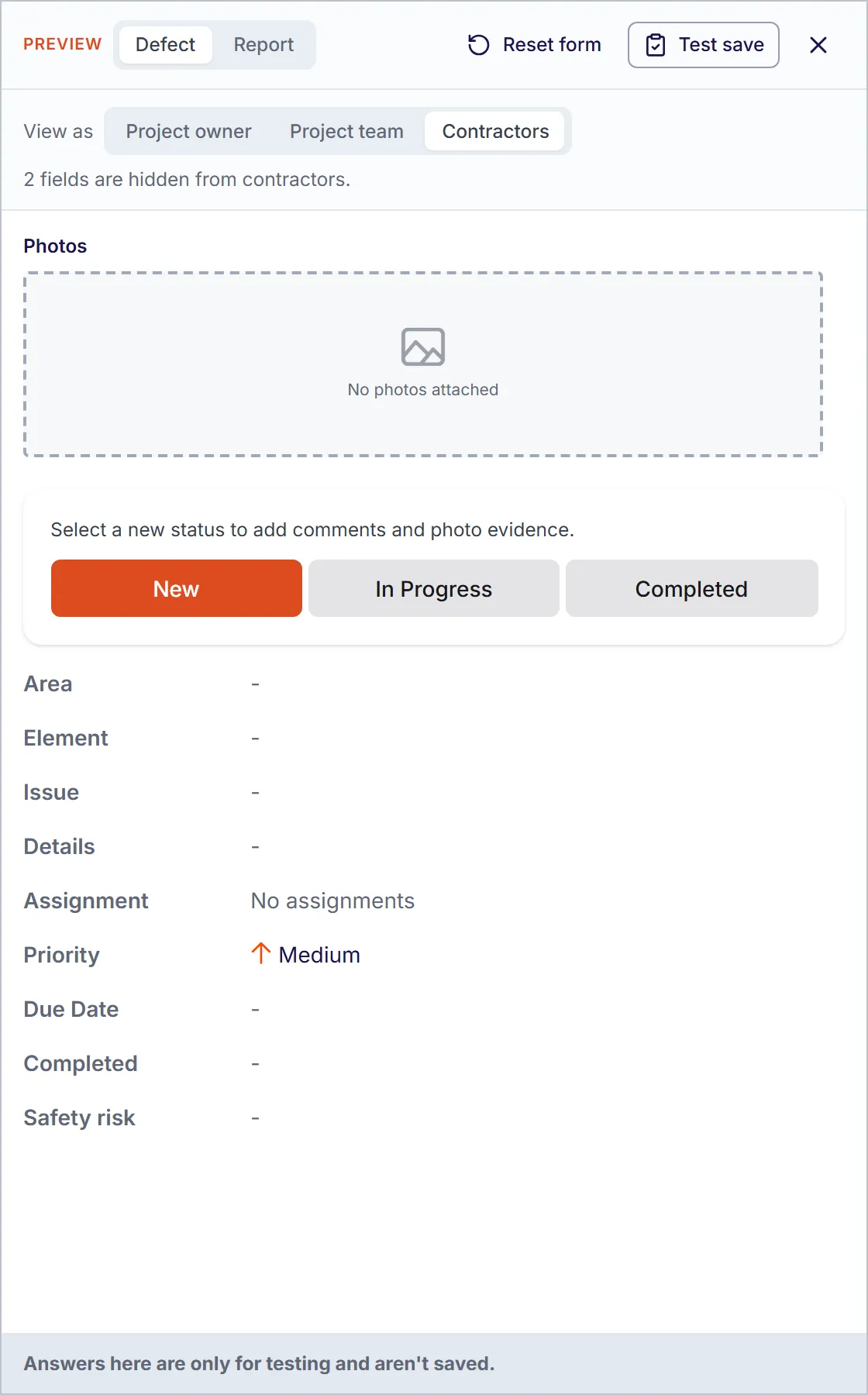
Under View as, choose Project owner, Project team or Contractors. The form shows only the questions that group can see, as set in each question’s permissions, and says how many fields are hidden from them.
-
Fill in the answers to try it out. Conditional questions appear as you answer.
-
Click Test save to try saving the defect.
Click Reset form to clear your answers. Answers in the preview are only for testing and aren’t saved.
Preview the report
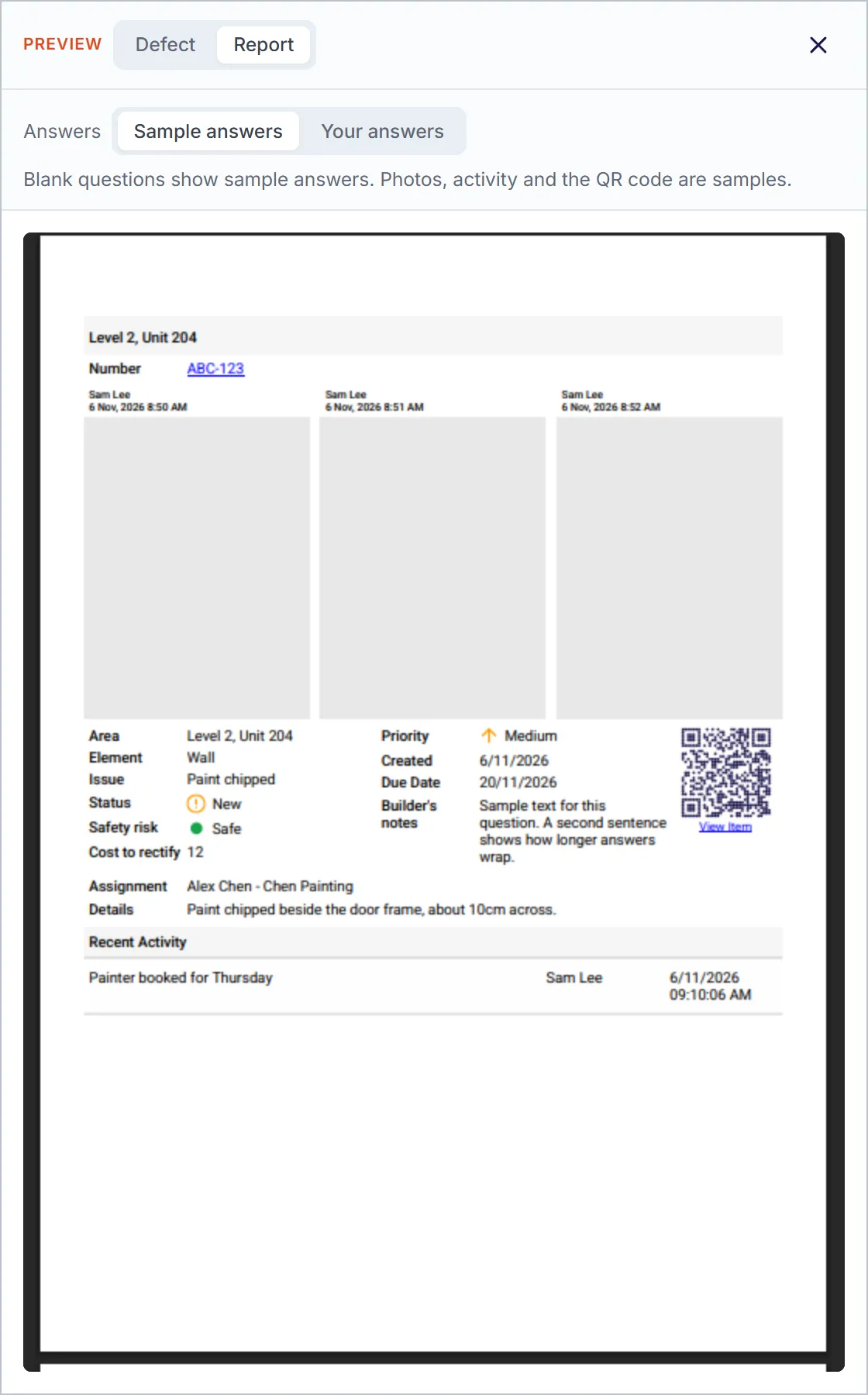
Section titled “Preview the report”Click Report to see how a defect on this form prints, using the report layout.
- Sample answers fills blank questions with sample answers. Photos, activity and the QR code are always samples.
- Your answers uses what you entered in the defect preview.
Close the preview with the cross at the top right.