

Disable or delete a contractor
Who can do this: Workspace Owner and Admins
When a contractor has finished with you, disable them. Only delete a contractor you added by mistake.
- Disable keeps the contractor and their history, but hides them when you assign defects and stops their access to reports and project data. You can enable them again.
- Delete removes the contractor for good. You can only delete a contractor who isn’t assigned to a project or any defects.
On the web portal’s Contractors page, the Assigned column shows which contractors are on a project or assigned defects.
Disable a contractor
Section titled “Disable a contractor”- On the projects list, tap the settings icon, then Contractors.
- Tap the contractor.
- Turn off Enable Contractor.
- Tap Save.
Disabled contractors are hidden from the contractors list in the app.
-
Click the settings icon at the top right, then under Admin Tools, click Contractors.
-
Click the contractor’s row.
-
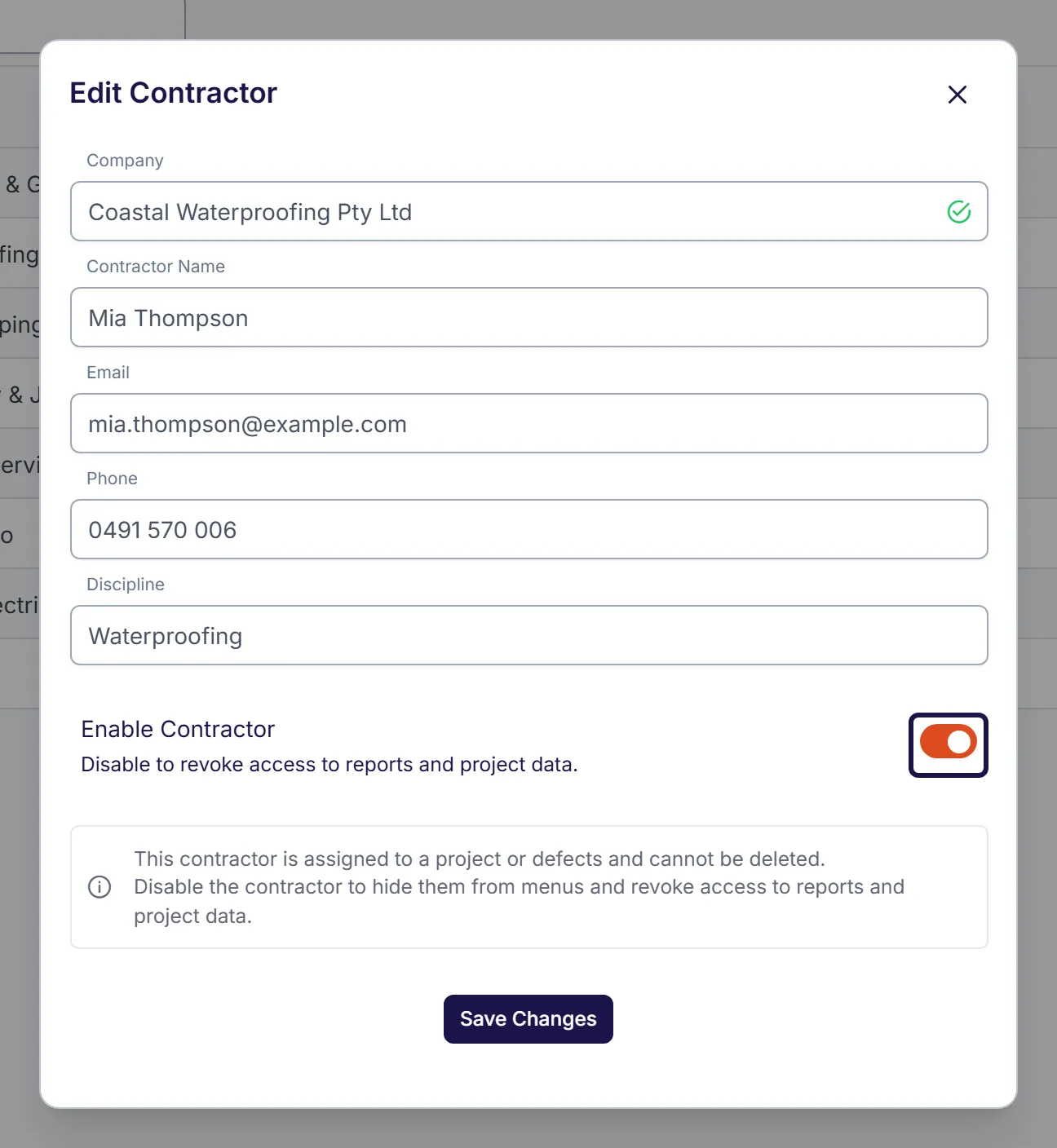
Turn off Enable Contractor.
-
Click Save Changes.
The contractor stays in the list with a status of Disabled. To enable them again, turn Enable Contractor back on and save.
Delete a contractor
Section titled “Delete a contractor”Deleting a contractor is permanent and can’t be undone.
Mobile steps coming soon.
- On the Contractors page, click the contractor’s row.
- Click Delete Contractor.
- Click Delete to confirm.
If the contractor is assigned to a project or defects, their form doesn’t show Delete Contractor. Disable them instead.