

Add questions
Who can do this: Workspace Owner and Admins
Add questions to a form so each defect captures what your team needs, like a safety risk or the cost to fix it.
Add a question
Section titled “Add a question”-
Open the form from the Defect Forms page. It opens on Form design.
-
Under the questions, click Add question.
-
Type the question, for example “Safety risk”.
-
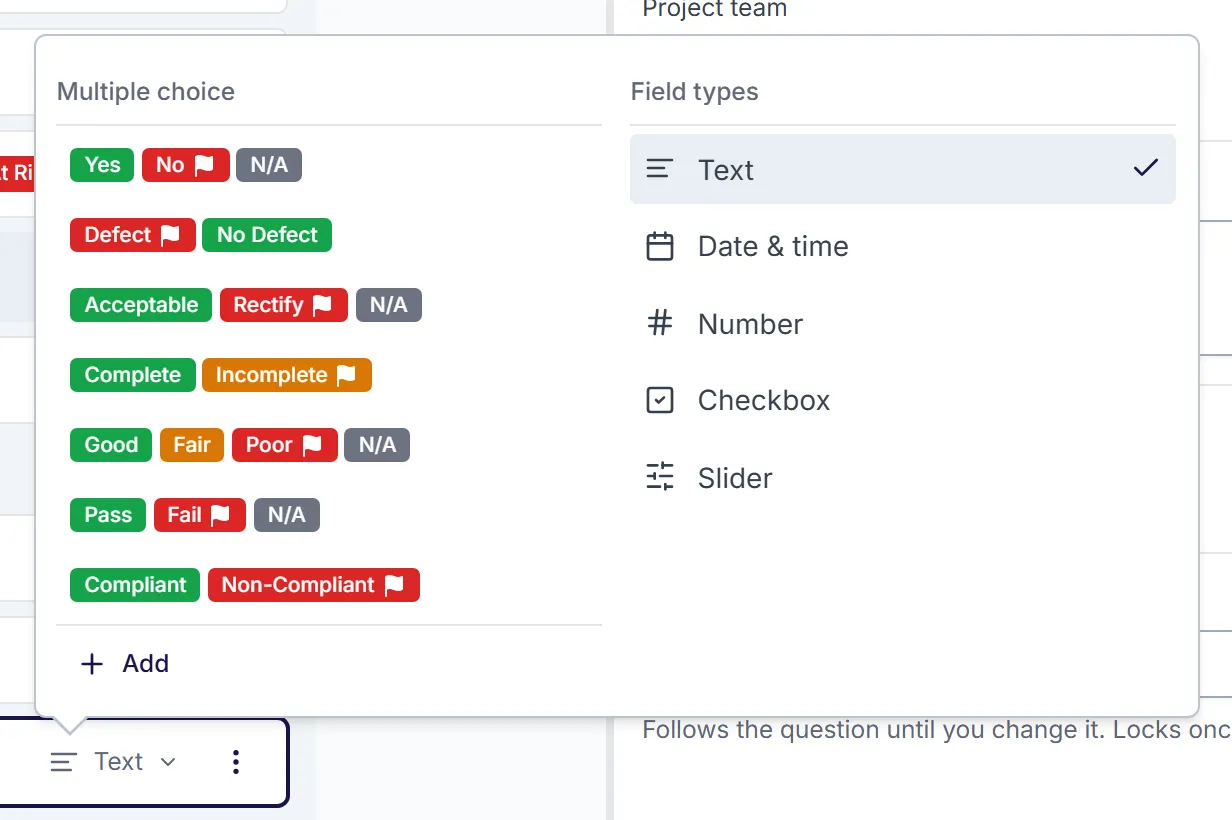
Click the answer type on the right of the question (it starts as Text) and choose a type.
-
Set the question up in Field settings on the right. See Question settings below.
Your changes save as you go. Defects don’t see them until you publish the form.
The counter under the questions shows how many you’ve used, for example 12 of 30 questions.
Answer types
Section titled “Answer types”| Type | Use it for |
|---|---|
| Multiple choice | Picking from set answers, like Yes / No / N/A or Pass / Fail / N/A |
| Text | Notes, in a Single line or Multi-line answer box |
| Number | Quantities or costs, with an optional Unit, Min, Max and number of Decimals |
| Checkbox | A single tick |
| Date & time | When something happened or is due |
| Slider | A rating on a scale |
Multiple choice answers
Section titled “Multiple choice answers”The picker has ready-made sets under Multiple choice: Yes / No / N/A, Defect / No Defect, Acceptable / Rectify / N/A, Complete / Incomplete, Good / Fair / Poor / N/A, Pass / Fail / N/A and Compliant / Non-Compliant. A flag marks the answers that are flagged.
- To change a ready-made set, use Edit a copy next to it. This edits a copy, so the original stays as it is.
- To make your own set, click Add under the sets. Give each answer a colour and a name, and click Add answer for more.
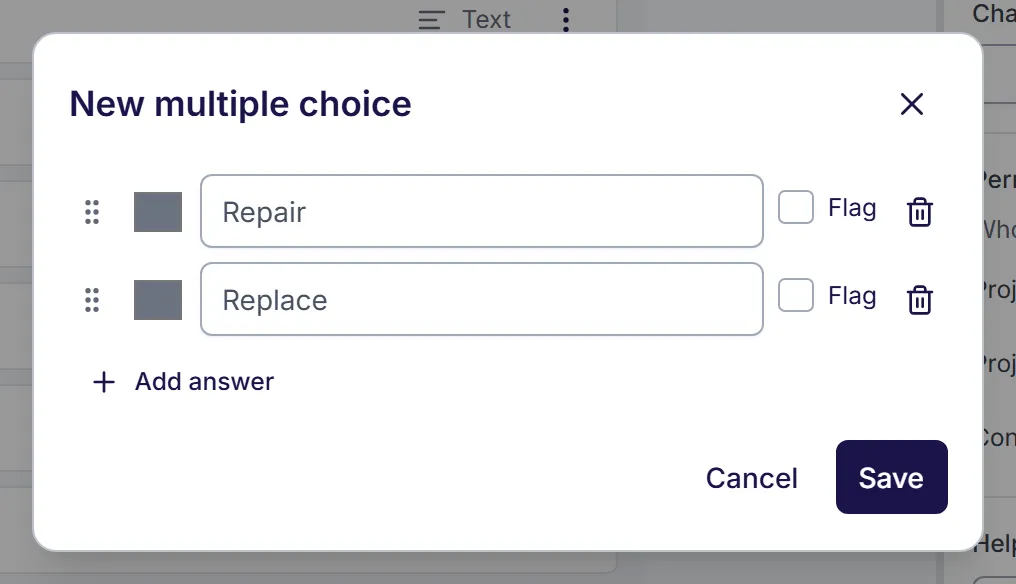
Tick Flag on answers that need attention, like Fail or Rectify. Flagged answers are highlighted in reports.
Question settings
Section titled “Question settings”Click a question to open its Field settings on the right.
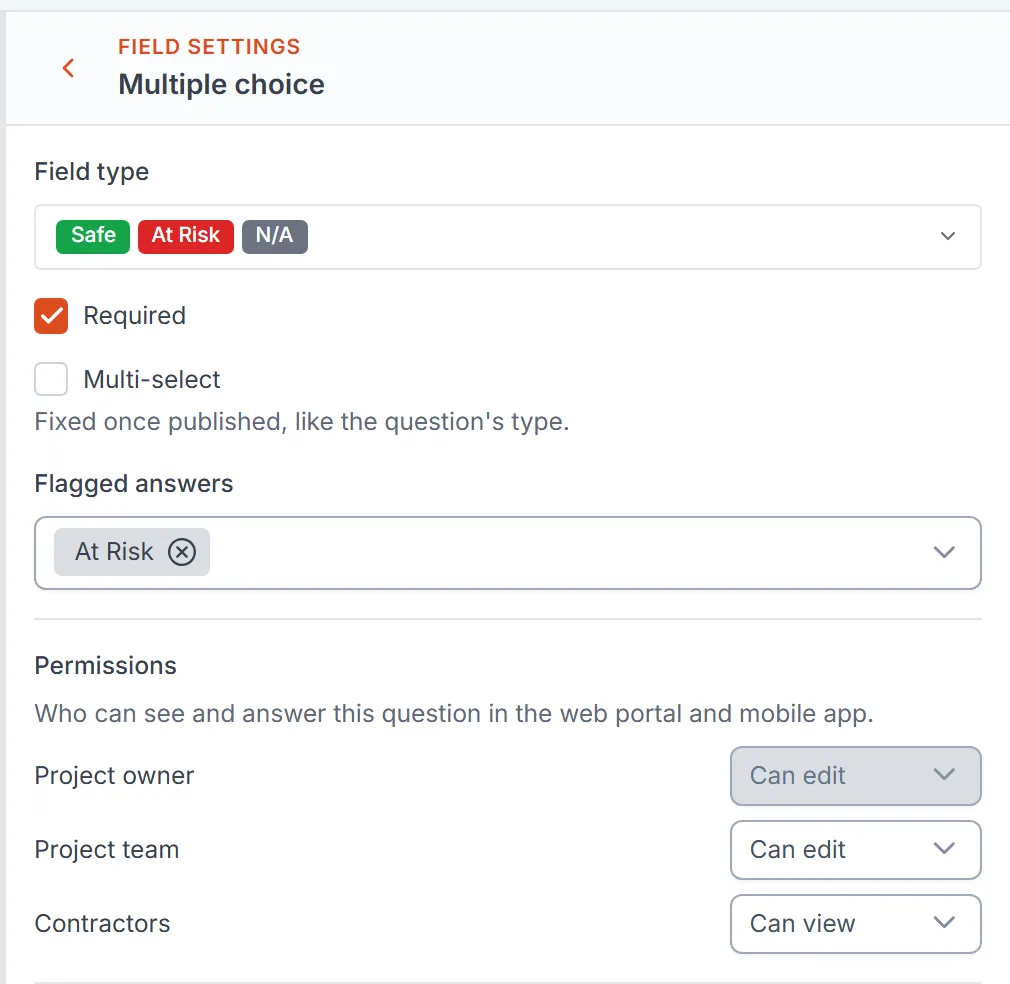
- Required: the question must be answered. Required questions show a red asterisk.
- Multi-select (multiple choice only): let people pick more than one answer.
- Flagged answers (multiple choice only): the answers highlighted in reports.
- Answer box and Character limit (text only): a Single line or Multi-line box, and an optional limit on length.
- Help text: a hint shown under the question.
- Permissions: who can see and answer it. See Choose who can see a question.
- Field name: filled in from the question as you type, until you change it. It locks once the form is published.
Move, copy or remove a question
Section titled “Move, copy or remove a question”Drag a question by the handle on its left to move it. Or click the menu at the end of its row for Duplicate, Move up, Move down or Remove from form.
If you remove a question that’s already been published, Show removed appears at the top, with a count. Click it to see removed questions.
Undo a change
Section titled “Undo a change”Use the undo and redo arrows at the top right.