Switch between company workspaces
A workspace holds a company’s projects, team and contractors. Everyone has their own workspace, and when another company invites you to their team, you’re added to their workspace too. Switch between them to work on each company’s projects.
The company owns its workspace and everything in it, including the defects, photos and comments you add. If you leave their team or delete your account, your work stays in their workspace.
Mobile steps coming soon.
Switch workspace
Section titled “Switch workspace”-
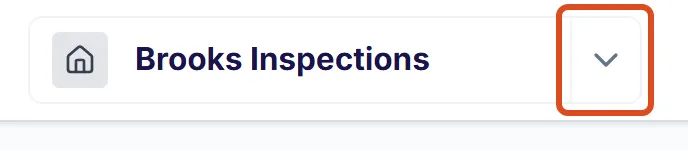
At the top left, click the arrow next to the workspace name.
-
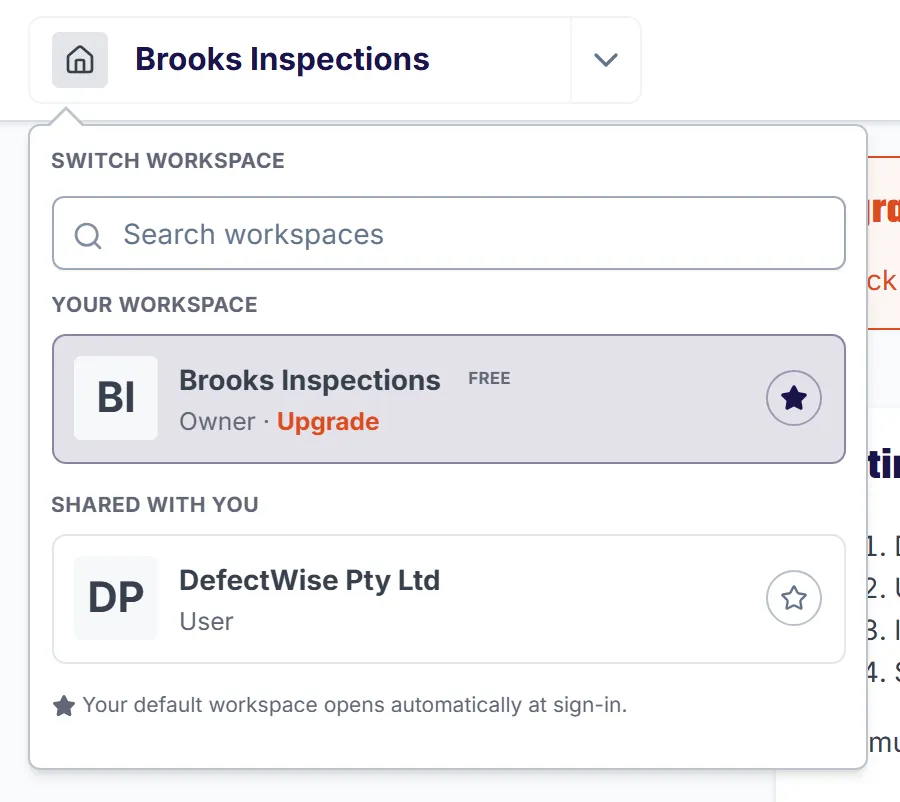
Click the workspace you want. Type in Search workspaces to find it if you have a lot.
The workspace opens straight away, and its name shows at the top left.
In the list:
- Your workspace is the one you own.
- Shared with you lists the workspaces you’ve been invited to.
- Each workspace shows your role in it, like Owner or User.
- The workspace you’re in has a highlighted border.
- A Free tag means that workspace is on the free plan.
Choose your default workspace
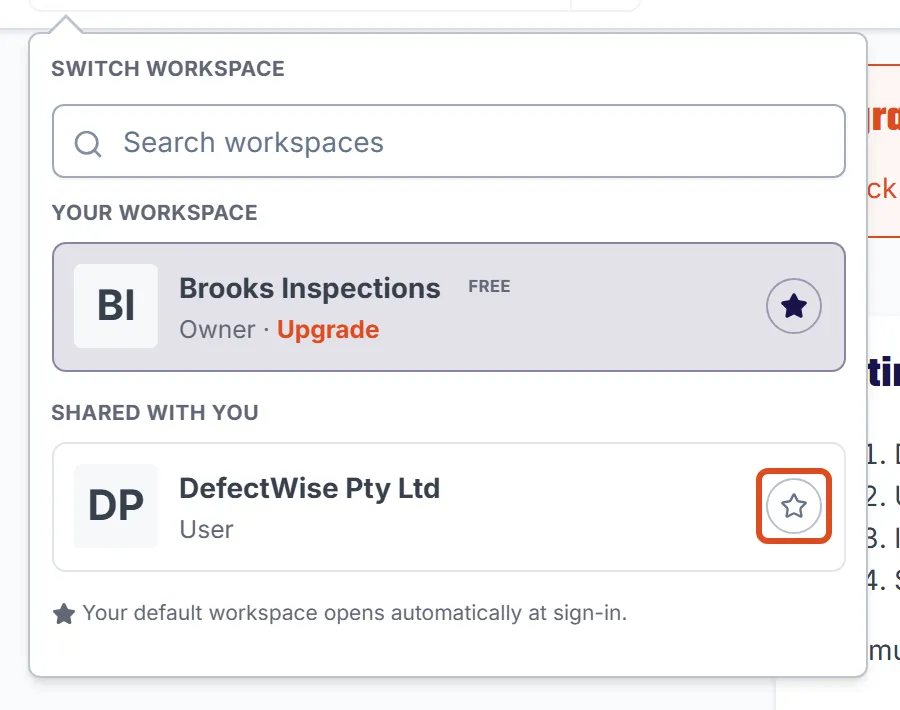
Section titled “Choose your default workspace”Your default workspace opens automatically when you sign in. It has a filled star .
-
Open the workspace list as above.
-
Click the empty star next to the workspace you want as your default.